From installation to your first draft
Write with your own PC and ChatGPT subscription for 0 POINT.
Read the Yurasis guide article (Korean) →1. Install
Download and run the Windows x64 installer. No admin account, Node.js, Git, SSH, repository checkout or POINT balance is required. The app includes Codex CLI.
2. Connect Yurasis
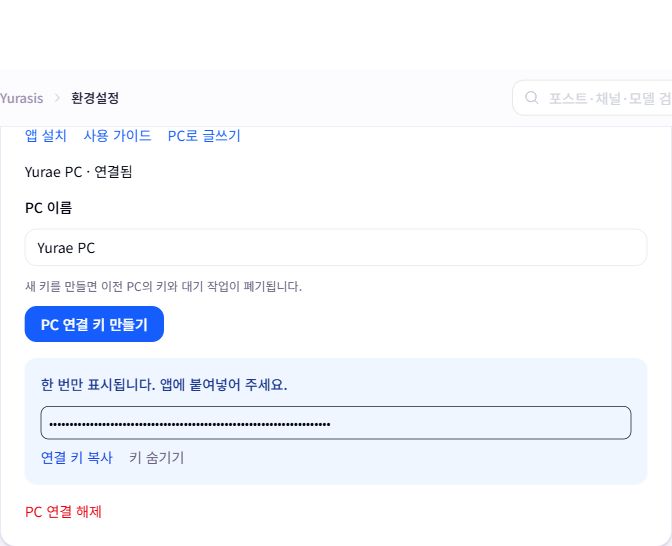
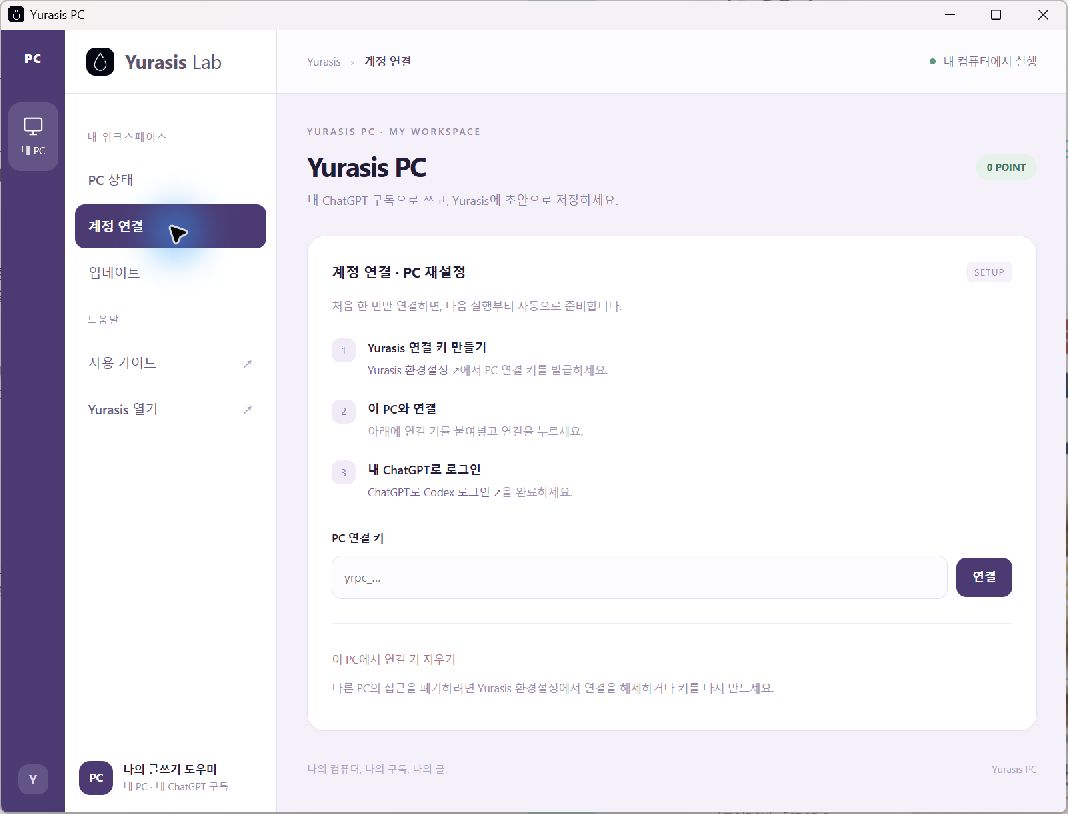
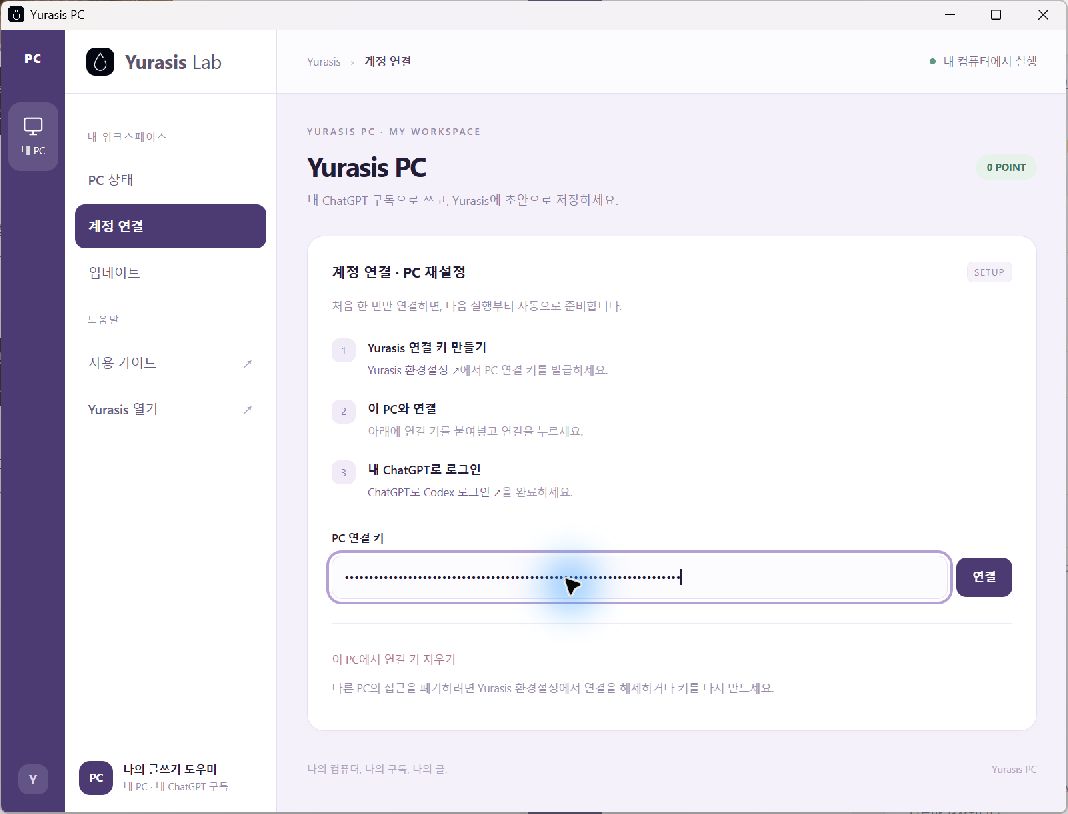
Open Settings → My PC, name the computer and create a connection key. Paste the one-time displayed key into the app. One computer is connected per account; a new key revokes the old computer and its pending work.
3. Sign in with ChatGPT
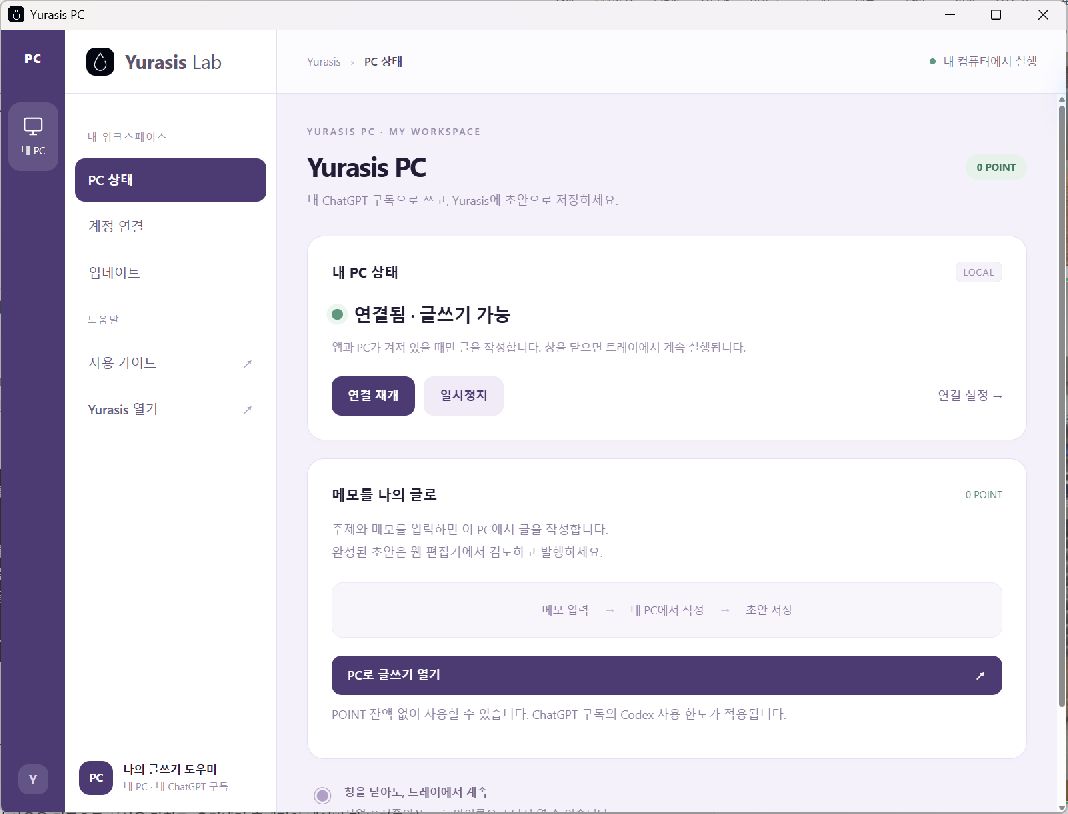
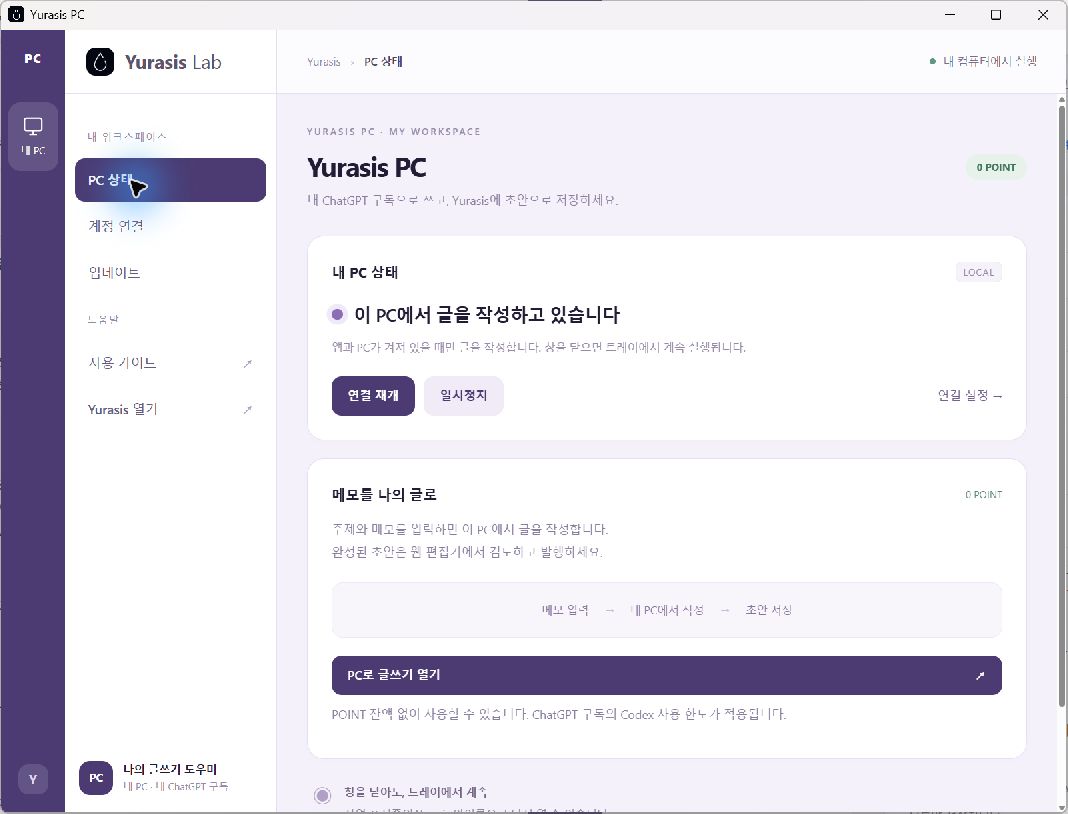
Click Sign in with ChatGPT in the app and finish signing in through your browser. Your account needs Codex access. ChatGPT credentials stay on your PC. Wait until the app shows Connected.
4. Write for 0 POINT
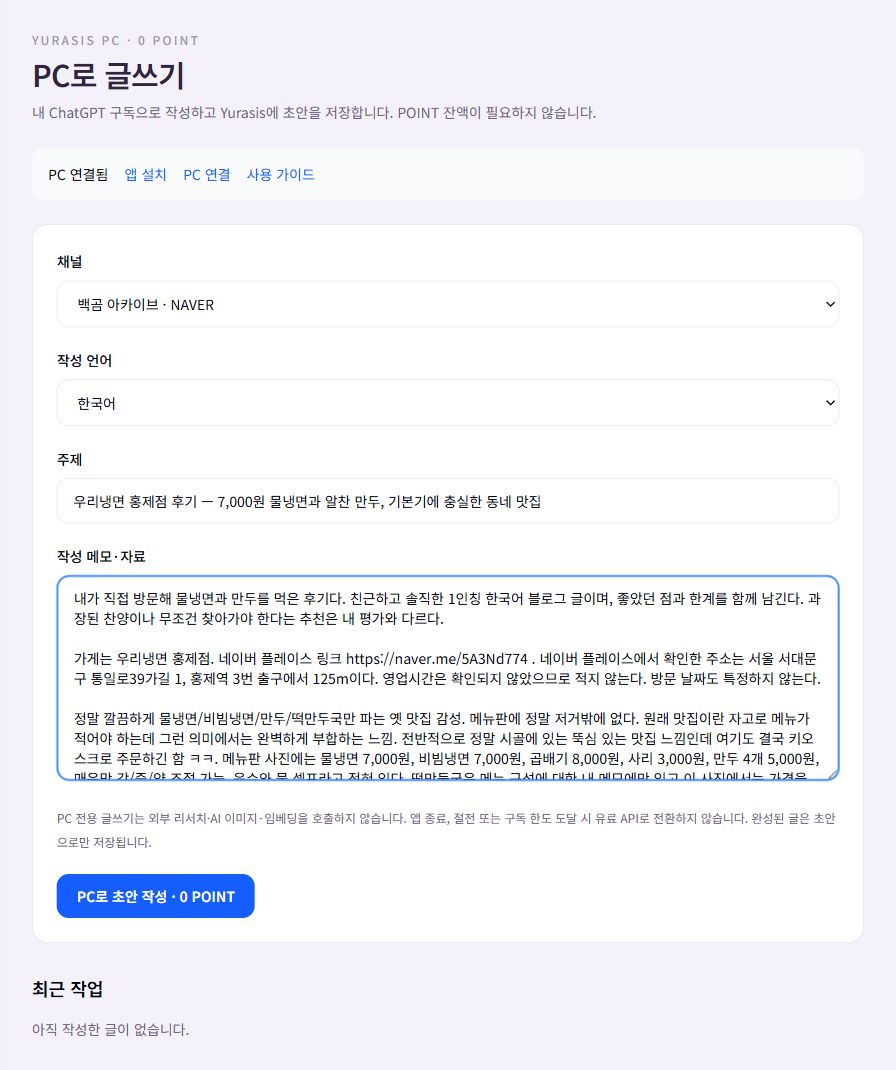
Open PC writing, choose a channel, language and topic, then supply your notes. Writing and saving a draft work at a zero POINT balance. Only your notes are used; linked pages are not fetched and external research, AI images and embeddings are not run.
5. Review and publish
Open the completed draft in the editor. It remains private until you publish it. Standard AI editing and generation features retain their POINT pricing. ChatGPT subscription fees and Codex limits still apply.

6. Running and stopping
Closing the window hides it to the tray. Pause or quit stops receiving work. Keep your PC awake and online. Interrupted work never falls back to a paid API or reruns automatically. You can optionally start the app at Windows login.
7. Updates
Updates are checked at startup and every six hours. Downloaded updates install when you click Install and restart, while no article is being written. Failed update checks do not stop the current app.
8. Reset or replace a PC
Install the app on the new PC, generate a new key in Yurasis Settings, paste it into the app and sign in with ChatGPT again. The previous key is immediately revoked. Revoke the connection in Settings when uninstalling too.
Troubleshooting
For offline status, check the app, internet and sleep settings. Sign in again when prompted. Wait for your Codex allowance to recover after a quota error. Invalid output or failed Korean prose checks do not save a draft. Work expires after about three minutes without an automatic replay.
Live verification · October 17, 2026
A draft completed while the app window was hidden. The test account stayed at 166 POINT with no hold or debit transactions. Photos, stickers and Naver publishing are separate editing steps after drafting.

